
This section will show you how to change your chat options in the Safe Harbor lobbies. I have written directions as well as provided screenshots to show you step by step instructions. First go up to the top of the lobby and click on "Lobby", you will then see "Chat Options", click it! 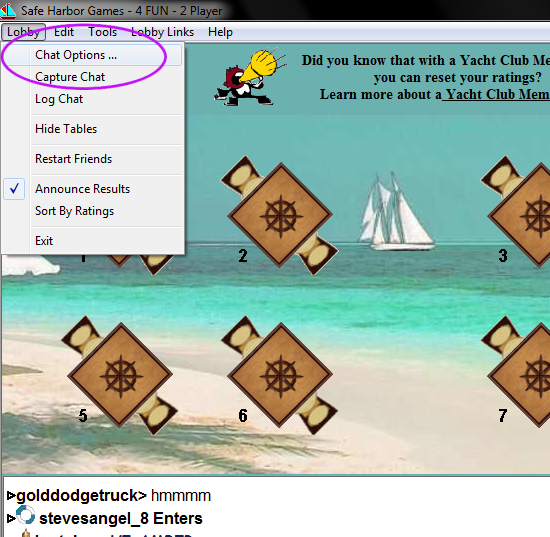 This opens up your options box, the size, font, and font style are pretty self explanatory, for this we will first do the color. So you need to click on "Choose Color". 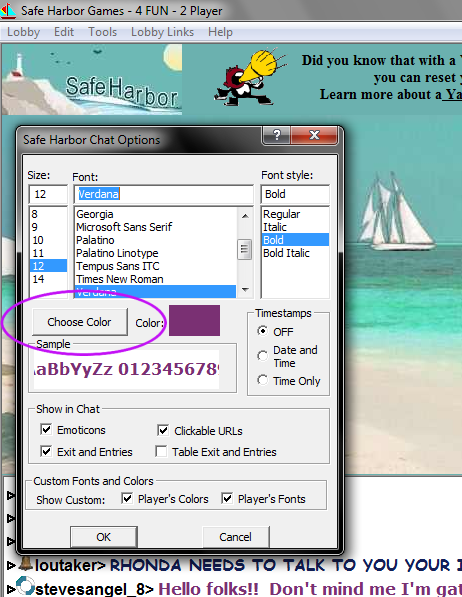 To choose the color, first position your black crosshairs wherever you want in order to get the color you want. 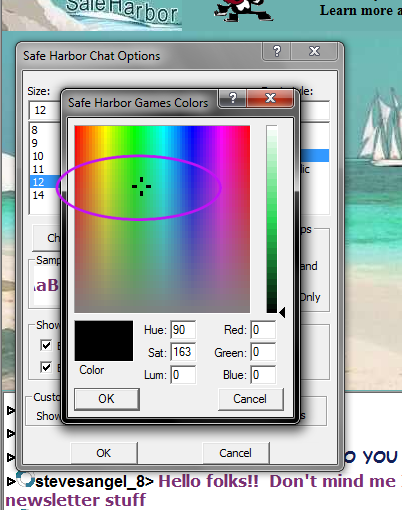 Now to make the color you want, you will need to adjust the slide arrow on the side. I have moved mine up to about the middle and you can see from the previous picture how the color changed. 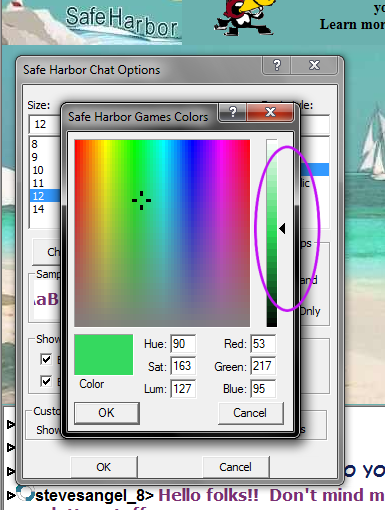 Your final color will be displayed in the small box labeled "Color". If the color shown in this box is not what you want, adjust either the black crosshairs or the slide arrow on the side to make it what you want. 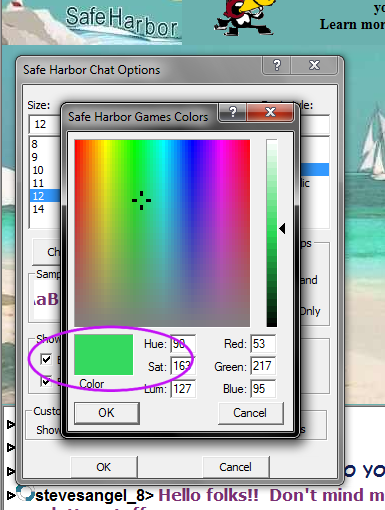 Now we will discuss what you WANT to see in the lobby. This Chat Options gives you custom options. I have included screenshots of the same section of text so that you can see the differences in your choices. The bottom of the Chat Options has two checkboxes. The default is to have both of them checked. 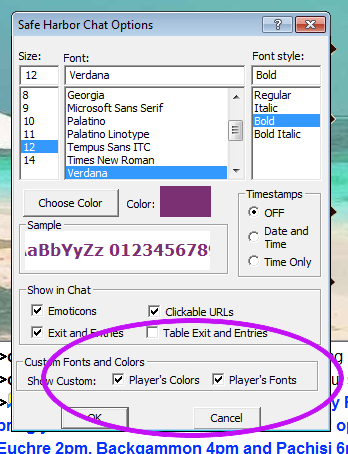 This is what the lobby text would look like with both of them checked. You will see everyone's choice of colors and fonts. 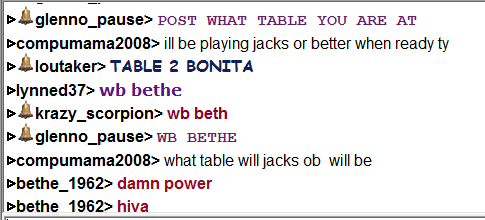 There might be some italicized fonts that give you trouble, so if you want to be able to see the color choices, but to choose how you want the font displayed, then you would uncheck the "Player's Fonts" box. 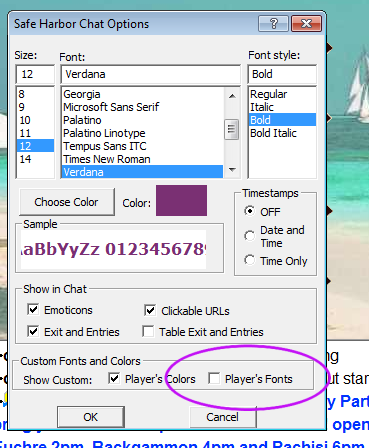 This is what the lobby text would look like with the "Fonts" box unchecked. You will see everyone's choice of colors, but the fonts will all look like what you have chosen for your own settings. 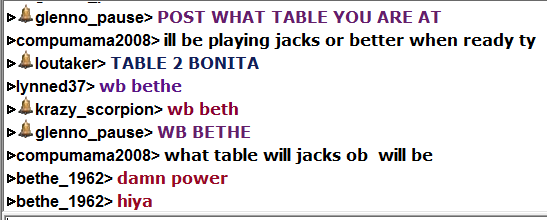 Maybe the fonts are fine, but someone has chosen a color that you just cannot see, then you would want to be able to see the font choices, but not the color choices. So to do that you would uncheck the "Player's Colors" box. 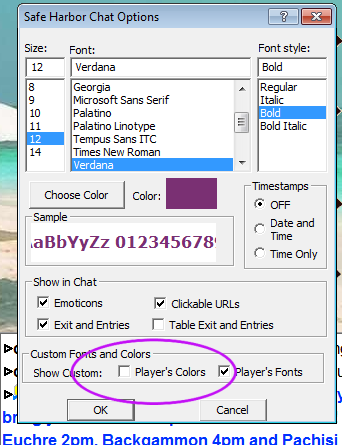 This is what the lobby text would look like with the "Colors" box unchecked. You will see everyone's choice of fonts, but the colors will all look like what you have chosen for your own settings. 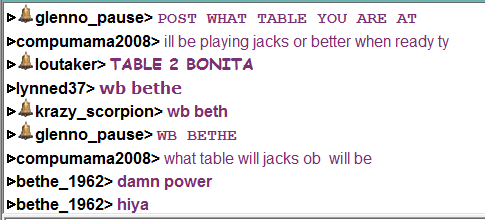 The last option available is to uncheck both boxes, which will make all the lobby text look like what you have chosen for your own settings. 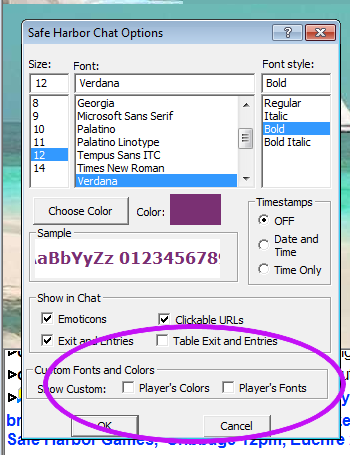 This is what the lobby text would look like with both boxes unchecked. You will see the same font and colors for all the lobby text. 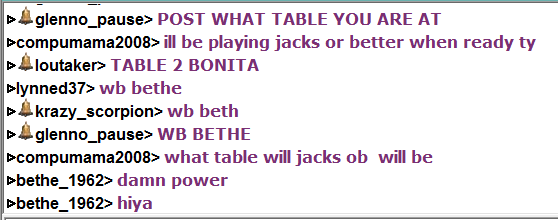 If you wish to add the times to all the lines of chat, so that you can see when things are posted, you can change the Timestamps from "Off" to "Time" or "Date and Time". All times are in PST. 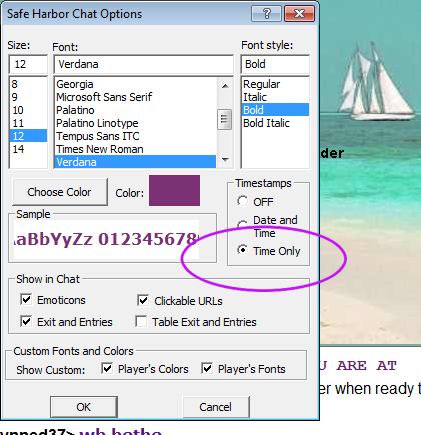 I chose to only show you what the time would look like. I am on EST, so while the time shows 3:54 pm, it was 6:54 pm my time. I know these do not show the AM or PM, but most folks will concentrate solely on the minutes part. Seeing as there are many folks from many different time zones, the minutes can help tremendously. 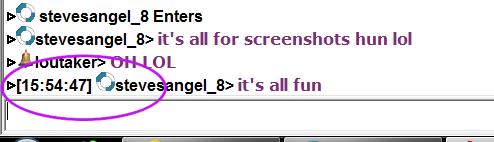 |