
This section will show you how to fix most of the problems that you will come across at Safe Harbor. I have included screenshots of some areas that give directions on how to fix problems, as well as some screenshots on how to fix one of the biggest problems that I've come across. As some problems arise, more may be added to this page as needed. On the Safe Harbor home page there is a "Help" section. The picture below shows how to get there, just click on the "Help". 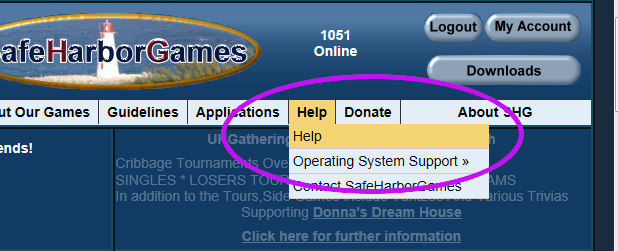 The next several screenshots are all sections from the Help section. I've taken these screenshots to hopefully narrow down your search. These are pretty self explanatory so I'm not gonna list information about them. You can certainly contact an Admin if you have any problems.  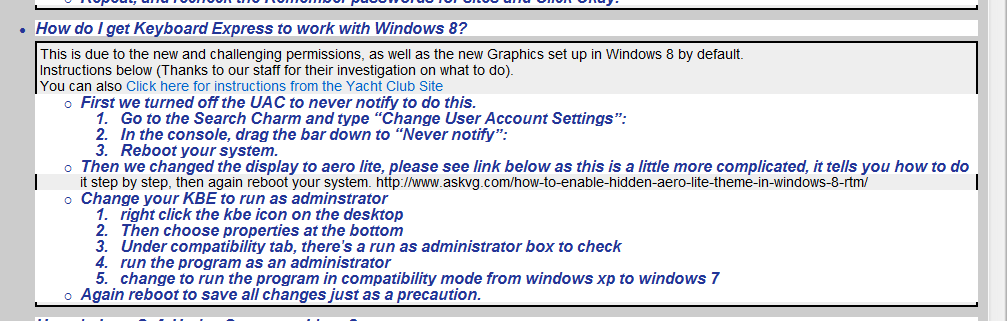 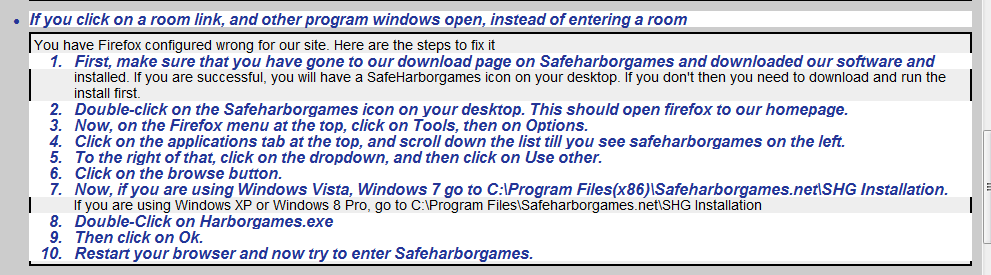  This next section is all about the User Account Control. The main issue for folks is that this has to be turned off. I have taken the screenshots to show how to do this on Windows 7. After these, are the instructions for all the Windows types. If you still have problems after reading this section or following the other directions, please contact Amber (stevesprettyangel_8 / stevesangel_8) to better assist you. So please remember this is on Windows 7, you start by click on your Windows (otherwise known as Start Menu) and select the Control Panel. 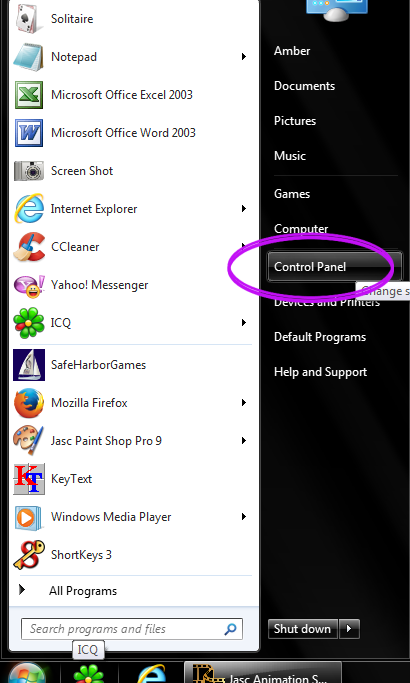 If you see the categories, please select "System and Security", if you see lots of little icons, please move down two screenshots. 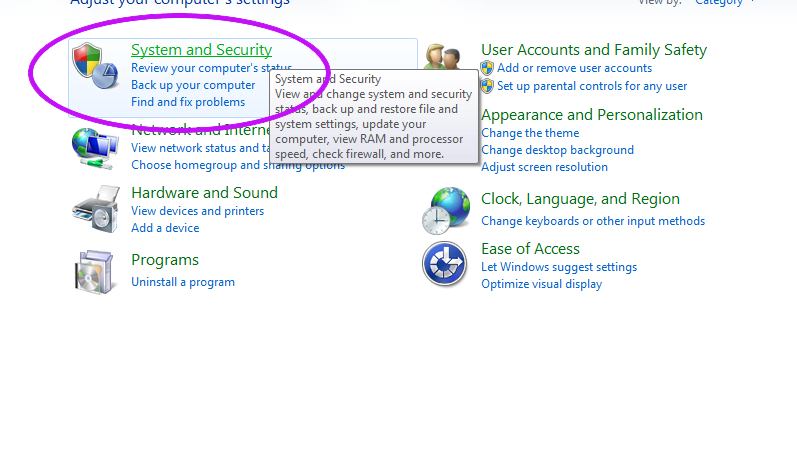 Once you have clicked System and Security, click on "Action Center" at the top. 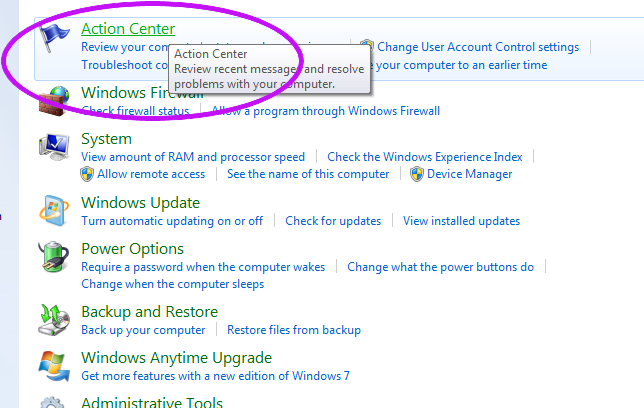 From earlier, if instead of categories you see lots of little icons, please click on "Action Center". These should be alphabetical order. 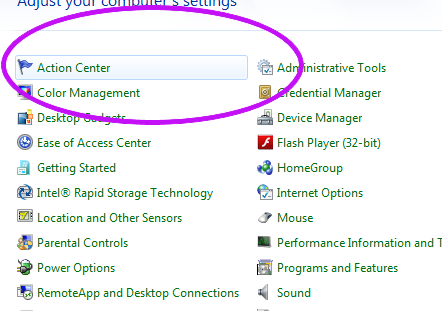 So now you are in the action center, on the left hand side please click on "Change User Account Control". 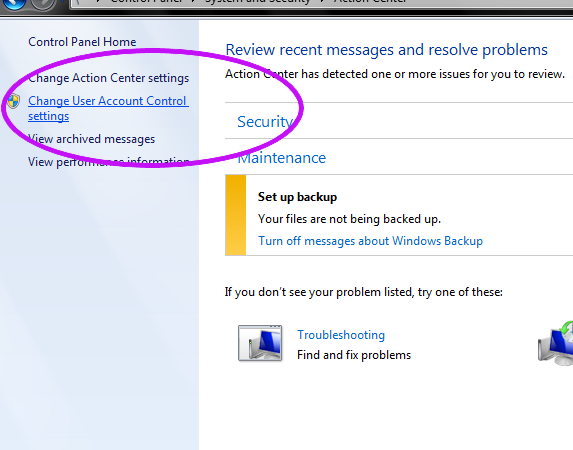 Now you will see a new window open up, and you want to take the little slide bar down all the way "Never Notify". After this click "OK" and then reboot your computer. 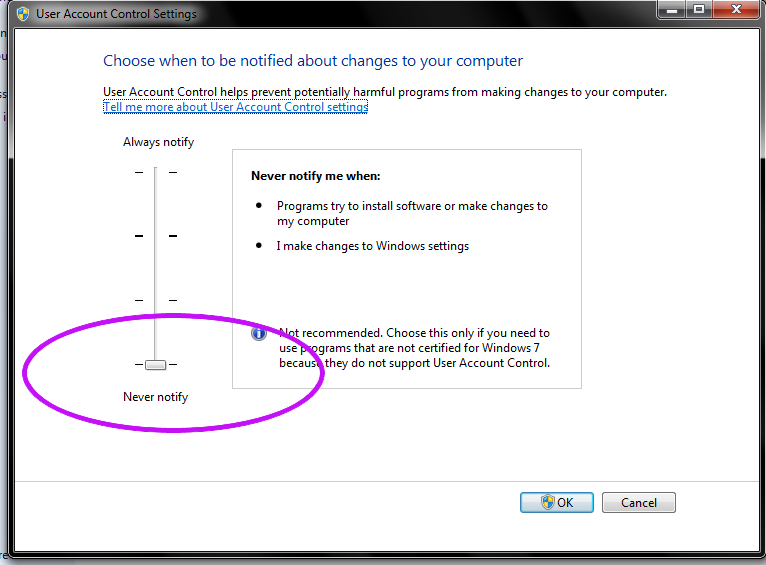 Below are all the fixes for Windows types, you will notice that Windows XP is not listed here, so far I have had no one report problems with XP. If you have Windows XP and you run into problems, please contact Amber (stevesprettyangel_8 / stevesangel_8). Windows 8 From the Desktop or the Windows Start Screen, use the keyboard shortcut Windows Key + X to bring up the so-called power user menu. Select Control Panel. After you have opened this up, you can follow the instructions with screenshots above. Windows 7 Read the instructions with the screenshots Windows Vista Open User Accounts by clicking the Start button , clicking Control Panel, clicking User Accounts and Family Safety (or clicking User Accounts, if you are connected to a network domain), and then clicking User Accounts. Click Turn User Account Control on or off. If you are prompted for an administrator password or confirmation, type the password or provide confirmation. Clear the check box by the Use User Account Control (UAC) to help protect your computer check box to turn off UAC, and then click OK. Close everything and then reboot your computer. |